How to Use Google Maps Without Internet
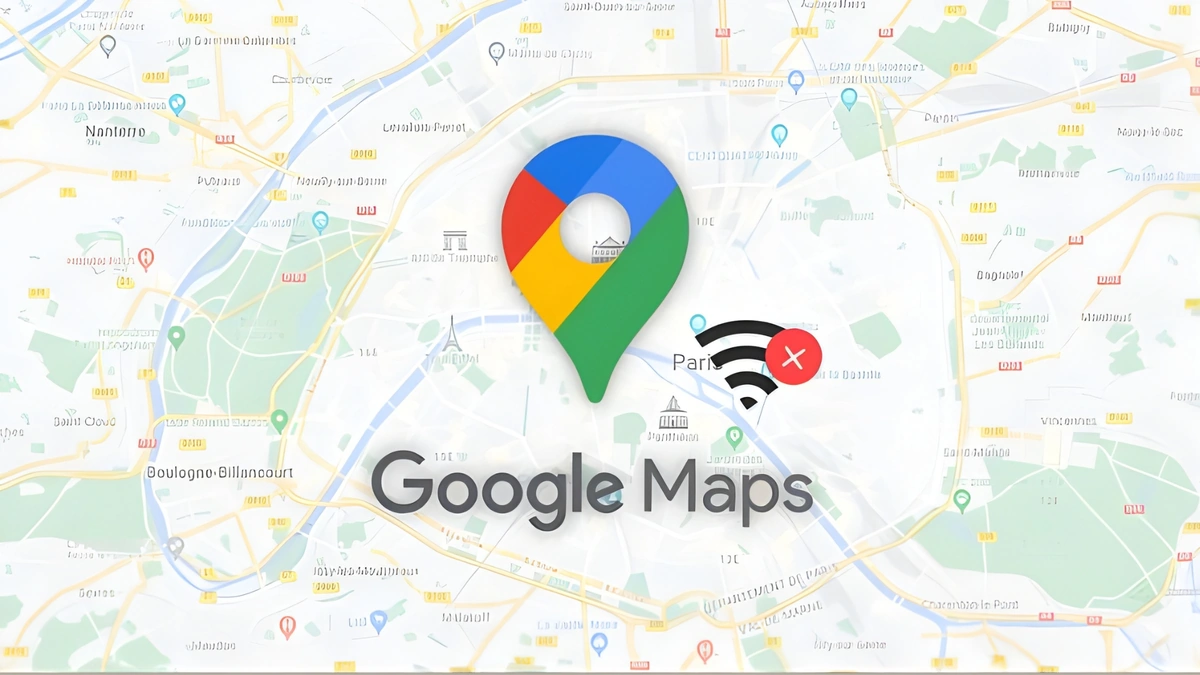
When traveling, running out of mobile data or losing network coverage in remote areas can leave many people struggling to find directions. However, very few people know that Google Maps can be used without the internet.
Google’s popular feature, Google Maps, has now brought the entire world to the palm of your hand. No city or street is unfamiliar anymore. The biggest advantage is that Google Maps can be used without an internet connection. For this, you need to save the required locations in advance. Then, you can use the map offline to reach those destinations. This feature is especially useful when traveling in network‑poor or remote areas.
With saved maps, you can easily navigate and get directions to your destination. You can even search for locations within the downloaded map.
Google Maps also allows users to download maps of specific areas in advance. Once downloaded, the offline map provides access to routes, navigation, street information, and important locations such as fuel stations, restaurants, and hospitals.
However, in offline mode, real-time traffic details, walking or cycling directions, and alternative routes will not be available.
Here’s how to download Google Maps for offline use:
-
Open the Google Maps app on your phone.
-
Tap the profile icon in the top-right corner.
-
Go to the “Offline maps” option.
-
Tap “Select your own map” and choose the area you want to download.
-
Tap “Download”.
Once the map is downloaded, you can view it and use navigation even without internet or mobile data. Keep in mind that offline maps can only show routes within the downloaded area.
Offline maps expire after a certain period, so regular updates are necessary. Typically, offline maps expire within 15 days. If your device is connected to Wi-Fi, Google Maps will automatically update the maps of that area.
Related News
You may like



Tom Holland Says Marvel Has a Plan for the Next Spider-Man
August 1, 2026
Elected News
-
Bangladesh Seeks UN Women Support on Digital Harassment and Women’s Empowerment
-

Bangladesh, Australia Discuss Human Trafficking, Irregular Migration and Rohingya Crisis
-
Bangladesh Plans Internet-Free Access to Mobile Banking and Financial Apps
-
DU to Open Undergraduate Admission Applications on 11 November, Tests Begin 5 December


